Password Managers: What You Should Know can make online security far easier for busy people in the United States. Instead of remembering dozens of logins, you use one carefully protected master password while the app creates, stores, and fills unique credentials inside an encrypted vault.
The best option depends on what you value most. For example, Bitwarden stands out for open-source flexibility and a capable free plan. Meanwhile, 1Password is polished for families and frequent travelers. NordPass offers a smooth premium experience, while Keeper is particularly useful for secure sharing and small-business controls.
- A password manager reduces reused and weak passwords.
- Zero-knowledge encryption means the provider should not know your vault contents or master password.
- Free plans can be useful, but device limits and missing monitoring features matter.
- Two-factor authentication should protect the password manager itself.
What Are Password Managers?
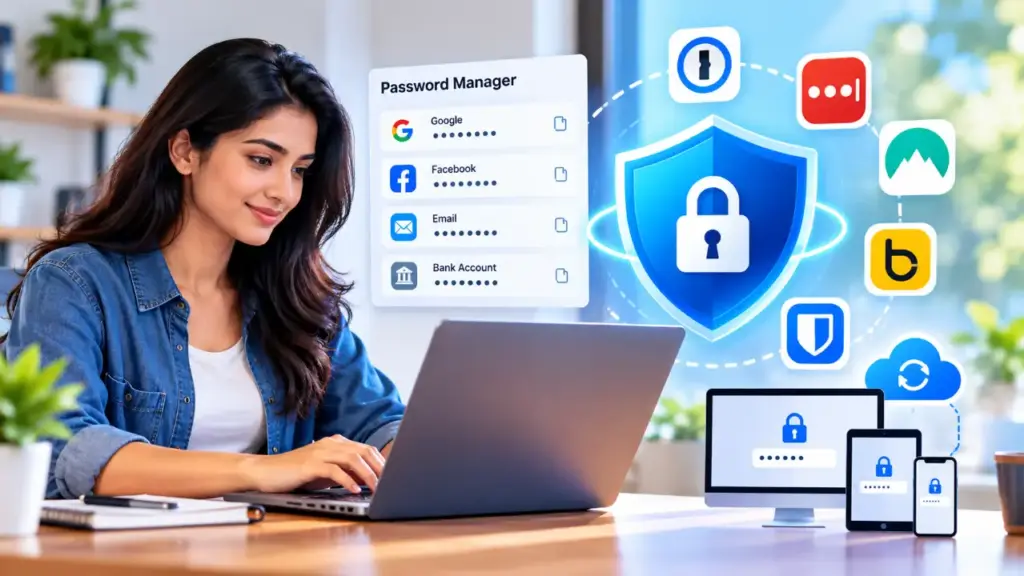
Password managers are encrypted tools that create, store, and automatically fill login credentials. Your saved information sits inside a digital vault protected by a master password, passkey, or another approved authentication method.
When you create an account, the manager can generate a random password instead of forcing you to invent one. Later, during a login, its browser extension or mobile app identifies the matching website and fills the stored username and password.
The practical benefit is simple: every account can have a different password without requiring you to memorize every one. That matters because one reused password can expose several accounts if a single service suffers a breach.
Read More: Cloud Storage: How to Choose the Right Service
How Do Password Managers Work?
A password manager normally encrypts your vault before syncing it to the provider’s servers. With a zero-knowledge design, the provider does not hold your usable master password or an unencrypted copy of your stored credentials.
In practice, most services follow a workflow like this:
- Create a strong master password or passphrase.
- Install the mobile app, desktop app, or browser extension.
- Import saved credentials from a browser or another manager.
- Replace reused passwords with randomly generated alternatives.
- Use autofill only on the correct website or application.
Many generators can create passwords of 20 characters or more using uppercase letters, lowercase letters, numbers, and symbols. Generally, a longer random password is more useful than a clever phrase that has appeared in one of your previous accounts.
What Does Zero-Knowledge Mean?
Zero-knowledge architecture means encryption and decryption happen locally on your device using information derived from your master password. As a result, the provider can synchronize encrypted data but should not be able to read the actual passwords in your vault.
This design reduces the damage caused by a server intrusion. However, it does not remove every risk. A weak master password, malware on your device, stolen browser cookies, or a fake login page can still put an account in danger.
For a plain-language explanation of safer account practices, review the guidance from the Cybersecurity and Infrastructure Security Agency.
Which Password Managers Stand Out?
The right password manager is the one that matches your devices, budget, sharing needs, and comfort level. For instance, a free plan may be enough for one person, while a family or business may need permissions, emergency access, reporting, and secure file storage.
| Password manager | Best fit | Notable strengths | Important limitation |
|---|---|---|---|
| Bitwarden | Free and open-source use | Unlimited storage on its free option, broad device support, and self-hosting availability | Password hygiene monitoring and some sharing features require a paid plan |
| 1Password | Families and frequent travelers | Easy-to-use apps, cross-device syncing, Watchtower alerts, and a secret key design | No free plan and some privacy features may require additional services |
| NordPass | Premium value | Clean interface, XChaCha20 encryption, password health tools, breach scans, and sharing controls | The price can rise after an introductory period and the free tier is limited |
| Keeper | Small businesses and secure sharing | Detailed folder permissions, emergency access, and SOC 2 and ISO 27001 compliance standards | Some monitoring features cost extra and individual plans can be expensive |
| Dashlane | VPN and phishing protection | Built-in VPN access, phishing alerts, dark web monitoring, and family sharing | Premium pricing is relatively high and passwordless login can feel awkward |
| Proton Pass | Privacy-focused free use | Open-source apps, email aliases, smooth autofill, and free core features | Secure link sharing and some advanced functions are paid features |
Bitwarden and Proton Pass
Bitwarden is a strong choice when unlimited vault entries and broad device access matter more than a polished premium bundle. Its open-source code and self-hosting option appeal to technically confident users. Similarly, Proton Pass is another notable free option, especially for people who want open-source apps and built-in email aliases.
There is a useful distinction here. Bitwarden emphasizes flexible password management, while Proton Pass places more attention on privacy tools such as email masking. Therefore, neither is automatically best for every household.
NordPass and 1Password
NordPass suits users who want a smooth paid service with password health checks, breach monitoring, emergency access, and family sharing. Its XChaCha20 encryption is an alternative to the AES-256 encryption used by many competing services.
1Password is particularly approachable for families. Shared vaults, cross-platform apps, Watchtower monitoring, and its secret key architecture make it a strong fit for people who want guidance without managing technical settings themselves.
Keeper and Dashlane
Keeper focuses on controlled sharing, folder permissions, business integrations, and compliance-oriented security practices. For example, a small company can use those controls to separate departments or restrict who can view a particular credential.
Dashlane is more attractive to people who want several privacy features in one subscription. Its built-in VPN, phishing alerts, breach monitoring, and family sharing add convenience, although the premium price deserves careful comparison.
Which Features Matter Most?
The most valuable features are the ones that prevent predictable mistakes: unique password generation, reliable autofill, multi-factor authentication, passkey support, and clear breach alerts. However, extra tools are helpful only when they work on the devices and browsers you actually use.
- Autofill: Saves usernames, passwords, addresses, phone numbers, and selected payment details.
- Password generation: Creates random credentials instead of encouraging repeated patterns.
- Password health: Identifies weak, duplicate, or compromised passwords.
- Passkeys: Stores biometric or device-based credentials for supported websites.
- MFA support: Adds a second verification step through an authenticator app, biometric method, or security key.
- Breach monitoring: Alerts you when an email address or credential appears in a known exposure.
- Secure sharing: Lets trusted people access selected items without sending passwords by text or email.
- Emergency access: Helps a designated person access important accounts during serious circumstances.
Autofill deserves special attention. A manager may work well in Chrome but need additional settings in another browser. Additionally, desktop application logins can require a full desktop app rather than a browser extension.
Why Do Passkeys Matter?
Passkeys replace the traditional username-and-password combination with cryptographic credentials linked to a device, passcode, or biometric unlock. In turn, they can reduce phishing exposure because a passkey is tied to the legitimate website rather than typed into a lookalike page.
Passkeys are helpful, but they are not a complete security plan. A compromised device, stolen session cookie, or malicious software can still create risk. Therefore, keep devices updated and continue using MFA where it is available.
What About Monitoring and Email Aliases?
Breach monitoring checks reported databases or other exposure records for matching email addresses and credentials. It cannot prevent every breach, and an alert does not prove that every account is compromised. Still, it gives you a reason to change the affected login quickly.
Email aliases add another privacy layer. Instead of giving every retailer your primary address, you can create a separate alias and disable it later if unwanted messages become a problem. Proton Pass, for example, is notable for including this capability in its product design.
How Should You Choose a Password Manager?
Start with your daily devices, browsers, and sharing needs rather than the longest feature list. A manager that works on your Windows computer but not your iPhone, preferred browser, or work applications will become frustrating and may eventually be abandoned.
| Your priority | Features to check first | Suitable options to investigate |
|---|---|---|
| Free personal use | Unlimited entries, unlimited devices, encryption, and autofill | Bitwarden or Proton Pass |
| Family sharing | Separate accounts, shared vaults, permissions, and emergency access | 1Password, NordPass, or Keeper |
| Small business use | Administrator controls, audit reports, integrations, and compliance documentation | Keeper, NordPass, or Dashlane |
| Local control | Offline storage, local vaults, or personal cloud-storage support | Enpass, Bitwarden, or LogMeOnce |
| Privacy extras | Email aliases, breach alerts, encrypted files, and VPN access | Proton Pass, NordPass, or Dashlane |
Price also needs a closer look. Annual plans are common, while free trials and money-back guarantees vary. Before subscribing, record the renewal date because some providers increase the price after the first year or two.
Family plans generally cover multiple individual accounts. Depending on the provider, a plan may support roughly five or six people. That arrangement is safer than passing one shared login around because each person can retain a separate account while receiving access to selected vault items.
Should You Use Local or Cloud Storage?
Cloud synchronization is convenient because your encrypted vault follows you between devices. By contrast, local-only storage offers more control, but it can make recovery and synchronization your responsibility.
Enpass is notable for allowing users to keep vault data on their devices or in personal cloud storage such as iCloud or Google Drive. That approach may appeal to people who do not want a password company to host the primary vault, although setup is less automatic.
Before choosing local storage, ask how you would recover the vault after losing a phone or computer. Otherwise, a security choice that leaves you without a reliable backup can create a different problem.
What Are the Main Advantages and Limits?
Password managers improve security by making unique credentials practical. They also reduce typing, simplify account recovery, and help households share selected logins without sending sensitive information through ordinary messages.
Advantages
- Unique passwords become realistic for every website and app.
- Autofill can help identify the correct domain and reduce phishing mistakes.
- Passwords and secure notes can sync across phones, computers, and browsers.
- Security dashboards can reveal duplicate, weak, or exposed credentials.
- Family and business tools can control access without revealing every password.
Limits
- The master password may be unrecoverable if you forget it.
- A stolen or infected device can expose an unlocked vault.
- Free plans may limit devices, sharing, monitoring, or storage.
- Autofill quality can vary across browsers and desktop applications.
- A provider breach may expose encrypted vault data that still requires strong protection.
The central trade-off is convenience versus control. Cloud sync is easier for most people, whereas local storage may suit advanced users who are comfortable managing backups and recovery.
What Safety Steps Should You Take?
Protect the password manager as carefully as the accounts inside it. Use a memorable long passphrase that has never been used elsewhere, enable MFA on the manager account, and replace reused credentials gradually rather than leaving the riskiest accounts unchanged.
- Create a unique master passphrase. Use several memorable words or another long format that you can recall without writing it in an exposed location.
- Turn on MFA. An authenticator app or hardware security key is generally preferable to relying only on a password.
- Change reused passwords first. Begin with email, banking, healthcare, cloud storage, and social accounts.
- Check the website before autofilling. A password manager should not become permission to ignore suspicious domains.
- Review alerts promptly. Change credentials after a verified breach and avoid reusing the replacement.
- Test recovery. Confirm that your backup codes, emergency contact, and recovery devices are available.
A busy worker can make meaningful progress in one short session by securing the primary email account, enabling MFA, and changing the five most important reused passwords. After that, the remaining accounts can be handled during normal logins.
What Mistakes Should You Avoid?
The most common mistake is treating the password manager as a magic shield. Although it protects stored credentials, it cannot secure an outdated device, remove malware, or make a fraudulent website legitimate.
- Never reuse the master password for email or any other service.
- Keep a separate copy of recovery information instead of storing the only copy inside the locked vault.
- Unexpected MFA prompts should never be approved.
- Use secure sharing rather than sending passwords through ordinary email or SMS when the feature is available.
- Before choosing a service, check browser, operating-system, and mobile support.
- Remember that a free plan may not include monitoring, family sharing, or unlimited devices.
- Review renewal prices after an introductory subscription period.
LastPass deserves particular caution because the supplied testing notes describe serious security incidents, including a 2022 breach involving customer account information and sensitive vault data. Consequently, a provider’s response history and transparency should be part of your decision, not an afterthought.
What Do Security Experts Look For?
Security-focused evaluations usually examine encryption, zero-knowledge design, independent audits, privacy policies, update activity, platform compatibility, support quality, and the company’s handling of past incidents. At the same time, usability also matters because abandoned security tools provide little protection.
A practical evaluation can score four areas: value, features, security, and usability. For example, one testing approach gives value and features 30 percent each, then assigns 20 percent to security and 20 percent to usability. The exact weighting is less important than applying the same standard to every product.
Look for public security documentation, current software updates, clear cancellation terms, and a support channel that can handle account-access problems. Ultimately, a manager may have excellent encryption yet remain a poor fit if you cannot use it consistently.
Frequently Asked Questions
Are free password managers worth using?
They can be worthwhile when they provide zero-knowledge encryption, reliable autofill, and access across your main devices. Bitwarden and Proton Pass are notable free options, although advanced monitoring may require payment.
Which password manager is the most secure?
No single product is safest for every person. Bitwarden’s open-source model, zero-knowledge design, and security program make it a strong candidate, while other services may offer better sharing or recovery tools.
Do security experts recommend password managers?
Yes. They make unique passwords practical, reduce reuse, support MFA, and can warn about exposed credentials. Even so, their protection still depends on a secure master password and a well-protected device.
How do I set up a password manager?
Create a unique master passphrase, install the apps and browser extension, import existing credentials, enable MFA, and replace reused passwords. Begin with email and financial accounts before moving through less critical logins.
Can a password manager be hacked?
Any online service can be targeted. Zero-knowledge encryption limits what an attacker can read, but a weak master password, infected device, or stolen session can still expose accounts.
What makes a password strong?
Length, uniqueness, and randomness matter most. Use a manager-generated password for ordinary accounts, or choose a memorable passphrase that has not been used anywhere else.
Should families share one password manager account?
A family plan with separate user accounts is safer than one shared login. It allows controlled vault sharing, access changes, and individual authentication without exposing every family member’s credentials.
Are passkeys better than passwords?
Passkeys can reduce phishing and password reuse because they rely on device-bound cryptography. However, they are not a substitute for device updates, screen locks, MFA, and careful account habits.
Choose the Tool You Will Actually Use
Password Managers: What You Should Know comes down to a practical decision: choose the service that works smoothly across your devices and supports the security habits you can maintain. Bitwarden and Proton Pass are strong starting points for free use, while NordPass, 1Password, Keeper, and Dashlane offer different premium strengths.
Before subscribing, check the current plan limits, renewal price, supported browsers, recovery process, and privacy policy. Then protect the manager with a strong master passphrase and MFA. In the end, consistent use is what turns a password manager from an app into meaningful account protection.